
Hello Flex PMS users!
As a Front Desk officer, your responsibility is to add a reservation for walk-in guests or guests who book through OTAs.
If you are a tax registrant, you are required to collect sales & service tax from your guest. For accommodation businesses, you may need to collect the following taxes from your guest:
- Sales & Service Tax (SST) 8%
- Tourism Tax (per room per night)
- Heritage Tax (per room per night)
Now, let’s imagine you received a reservation from Agoda and you’ll need to add a new reservation (with tax) in Flex PMS.
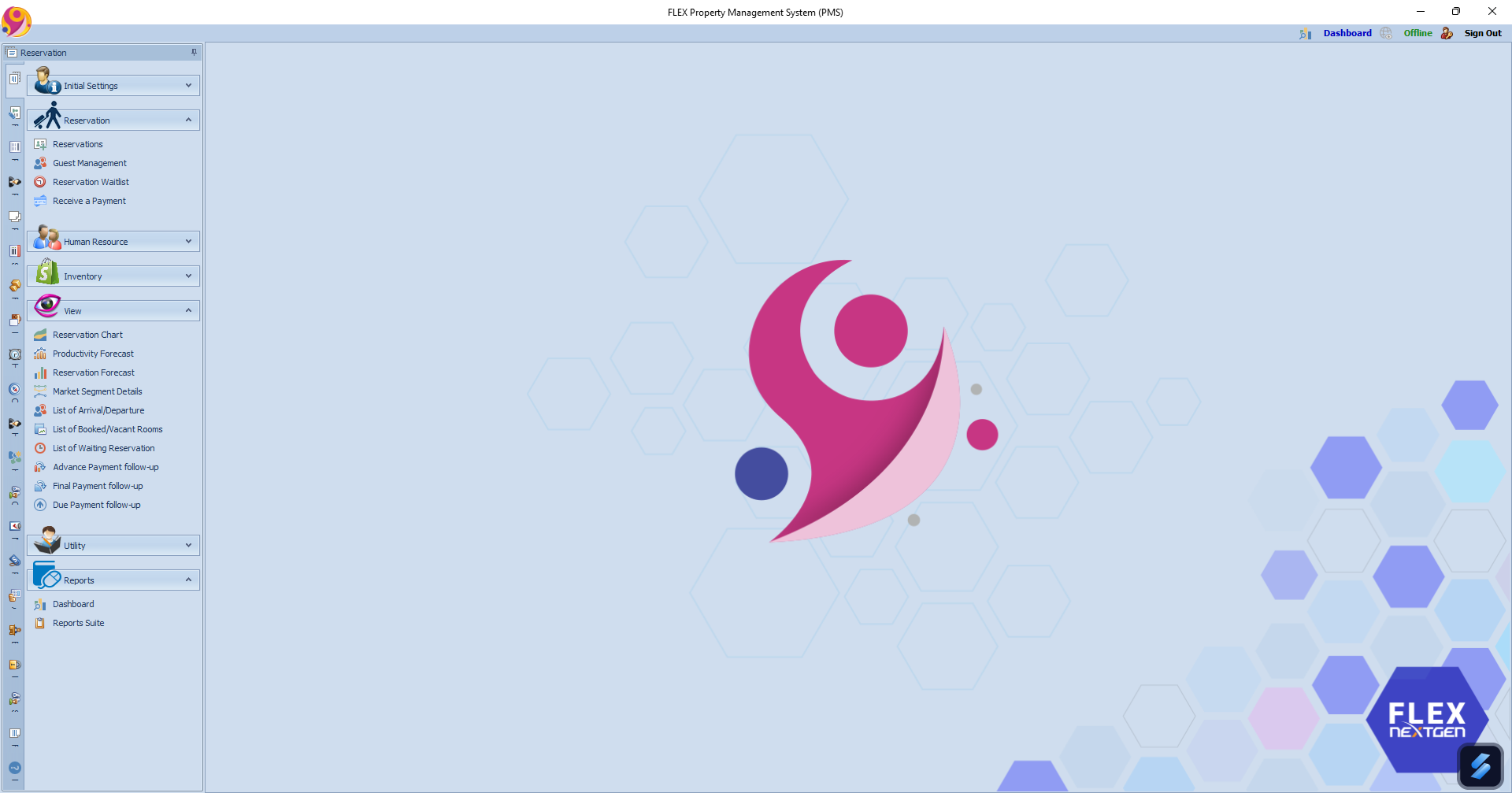
Steps to Add New Reservation With Tax in Flex PMS:
Follow the guidelines below:
- Login to Flex PMS.
- Select the appropriate property.
- Click on “Create Reservation”.
- Fill in the new reservation details.
- In the booking source column, choose a booking source, then fill in the OTA code.
NOTE: OTA code refers to the alphabetical booking code found on the booking voucher received from the respective OTA (Booking.com, Agoda, Airbnb). - Select the Guest Name. You can update the guest details on the Reservation page.
- Select the check-in and check-out date.
- Select the Room Type and Room No..
- Select the Rate Plan. In this example, choose the Best Available Rate of RM200 per night.
- Tick ‘Is Tax Inclusive’ and select ‘SST’:
- When you tick ‘Is Tax Inclusive’ & ‘SST’, it means the tax has been included in the room charges.
Amount Before Tax = RM 185.18 and Amount After Tax = RM 200.
- When you tick ‘Is Tax Inclusive’ & ‘SST’, it means the tax has been included in the room charges.
- Uncheck the ‘Is Tax Inclusive’ but tick ‘SST’:
- When you tick ‘SST’ only, it means the tax will be calculated on top of the room charges.
Amount Before Tax = RM 200.00 and Amount After Tax = RM 216.00.
- When you tick ‘SST’ only, it means the tax will be calculated on top of the room charges.
- Insert the Room Payment amount, Payment Method, and Payment Account, if you have collected it from the guest.
- Insert the refundable security deposit if you have collected it from the guest.
- Once all the information is filled in, click the green “Save” icon to save the reservation.
Notes:
- The yellow triangle icon refers to Security Deposit/charges that have not been refunded yet.
- Remember to refund the Security Deposit before checking out the guest.
Start adding new reservations with tax in Flex PMS now! 🙂
NOTE: Refer to this guide to learn how to set up a refundable security deposit in your Flex PMS.
This revision replaces Softinn PMS with Flex PMS and keeps the structure user-friendly and informative.